School of Bash
2026-02-22
It was a somewhat lazy Saturday yesterday and I wanted to hang out on my laptop and work on putting in some terminal work to build some skills. I had a bunch of PDFs of invoices cluttering my Downloads folder on my work computer. I have to download them and then email them off at times. Once they are gone, I don’t need them. So periodically I clean them up. However, I now know that I can run a command to find these files and do whatever I want with them.
So, I asked ChatGPT to help me assemble a command that would find these files so I could review them and then delete them afterwards. We did that, but then it added this comment at the end…
“If you want, I can give you a 30-minute daily training plan that will make you legitimately fluent in bash in about 2 weeks.”
To which I accepted.
So I had it give me a prompt I could use to begin a project to keep things in one place. I took the first day’s lesson and it was amazing.
SSH
I didn’t want to sit in my office and instead opted to SSH in from my laptop and work from bed. ha. I could have done this on my laptop, but wanted the flexibility to do it from my office or laptop and didn’t want to lock myself in to the laptop or have to SSH into the laptop from my office.
Building playground with one command
Since I am not completely oblivious to how some of the basics work, it had me try things and let me fail. One thing I did pull off without issue was it’s first challenge.
It wanted me to create all of the child directories for our parent in one command.
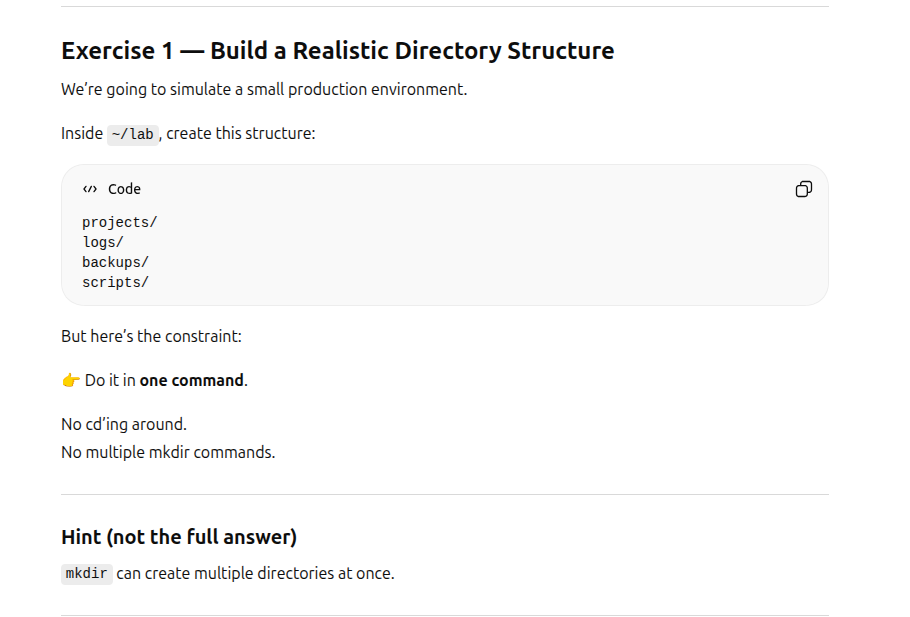
I’ve dealt with mkdir before. I wasn’t SURE about the command structure though and how it wanted the children to be listed though. I knew it wasn’t going to be done via commas. I did look up man mkdir to see if that could lend any help, but outside of implying it was possible didn’t see anything. So I just went for it. ha.
I sat and thought about it and decided spaces between the terms would probably work. It sorta felt like how I’ve dealt with previous commands and gave it a shot:
~/lab$ mkdir projects logs backups scripts
Worked out.
ls -l vs. ls -ld
A good deal of time early on was beating my brain into submission about the difference between ls -l lab/projects and ls -ld lab/projects. Understanding the difference in what -d does took a minute but ultimately I got it and it helped me think differently and understand later parts of the lesson better. The difference between merely listing contents or listing the directory itself.
I am still a little hazy, but think I have enough to build on.
Globs
So this was fun…
Once I got some understanding I was happy, but at first this took a minute to wrap my mind around.
I loved how ChatGPT stressed how dangerous this can be when it comes to scripting. A great deal of time was spent learning how hidden files can cause issues. That there is danger in something like:
rm lab/projects/.*
Still a little hazy, but got an education in caution. ha.
Summary of Ground Covered on Day 1
I am not in the blogging business. I am in the learning how to get stuff done business. I intended on summarizing my experience in my own voice, but have stuff to do so just asked ChatGPT to spit out a summary of what was covered so I can have a record of it here:
Summary: Spent this session drilling into shell globbing mechanics, expansion order, hidden file behavior, and dangerous edge cases. Moved from surface-level wildcard usage to character-by-character pattern reasoning and safe operator practices.
Lab Setup & Structure
- Created
~/labon Beast as a permanent sandbox. - Built simulated structure:
projects/logs/backups/scripts/
- Reinforced command grammar:
command flags arguments. - Practiced multi-argument commands:
mkdir a b c. - Explored
ls -lvsls -ld(directory object vs contents).
Shell Expansion Model (Major Mental Shift)
- Shell expands globs (
*,?,[ ]). - Shell builds argument list.
- Command executes with flags + arguments.
Key realization: Globs change what arguments a command receives. Flags change how the command behaves. These are separate layers.
Understanding Globs at the Character Level
*
- Matches zero or more characters.
- Can match nothing.
- Expanded by the shell before execution.
?
- Matches exactly one character.
- Pure character matching (not “one result”).
Character Classes
[!.]= any character except dot.- Allows precise control over pattern matching.
Shifted from thinking in “files” to thinking in “characters.”
Directory Object vs Directory Contents
Difference between:
ls lab/projects
ls lab/projects/*- First passes a directory argument.
- Second expands to individual file arguments.
- Different behavior when directory is empty.
- Different failure modes.
Important insight: A directory is a filesystem object, not just a container.
Hidden Files and the
. / .. Trap
- Files starting with
.are hidden by shell convention. *does NOT match hidden files by default..*matches:....secret
Dangerous example:
rm -rf lab/projects/.*This expands to:
lab/projects/.
lab/projects/..
lab/projects/.secret
.. refers to the parent directory. This is how entire
directory trees get deleted accidentally.
Safe Hidden File Patterns
Why .?* is NOT safe:
- It still matches
...
Correct safe combination:
.[!.]* ..?*.[!.]*→ hidden files not starting with two dots...?*→ hidden files starting with two dots but longer than...- Together exclude
.and...
Globs That Match Nothing
If a glob matches nothing:
echo *.confThe shell does NOT remove it. It passes the literal pattern:
*.confThis can break scripts and loops.
Admins sometimes enable:
shopt -s nullglobTo change that behavior.
Biggest Conceptual Upgrade
Shifted from:
“Wildcards find files.”
To:
“The shell performs pattern expansion on strings before the command runs.”
That separation between expansion, command behavior, and filesystem meaning is the start of real shell fluency.